
Jobber integration
Every call ends as a client and a request in Jobber.
Missed calls are missed jobs, and jobs jotted on the back of an invoice rarely reach Jobber. Callspace answers, finds out who is calling, and adds them to Jobber as a client with a request attached. It then books the on-site assessment against your Jobber schedule before the caller hangs up.
7-day free trial · 5-minute setup · Trained on your business · No contract
Field service · Available now
What it does on a call.
- 01
Matches repeat callers to their client record
The AI looks up the caller in Jobber by phone number first, so your office has no duplicates to merge on Monday.
- 02
Creates new clients during the call
A first-time caller becomes a Jobber client with name, company, phone, and email captured as they talk.
- 03
Logs the job as a request
The caller’s problem is written into Jobber as a request with a one-line title and their own description, ready in your workflow where a lead belongs.
- 04
Reads your Jobber schedule
Availability comes from Jobber, so the AI only offers times your crew is free. When the requested day is full, it offers the nearest openings.
- 05
Books the on-site assessment
The assessment is booked against the new request, with the reason for the visit recorded as instructions for whoever shows up.
- 06
Reschedules on the same call
If the caller changes their mind about the time before hanging up, the AI moves the assessment on the spot.
In Callspace
What you will see.
-
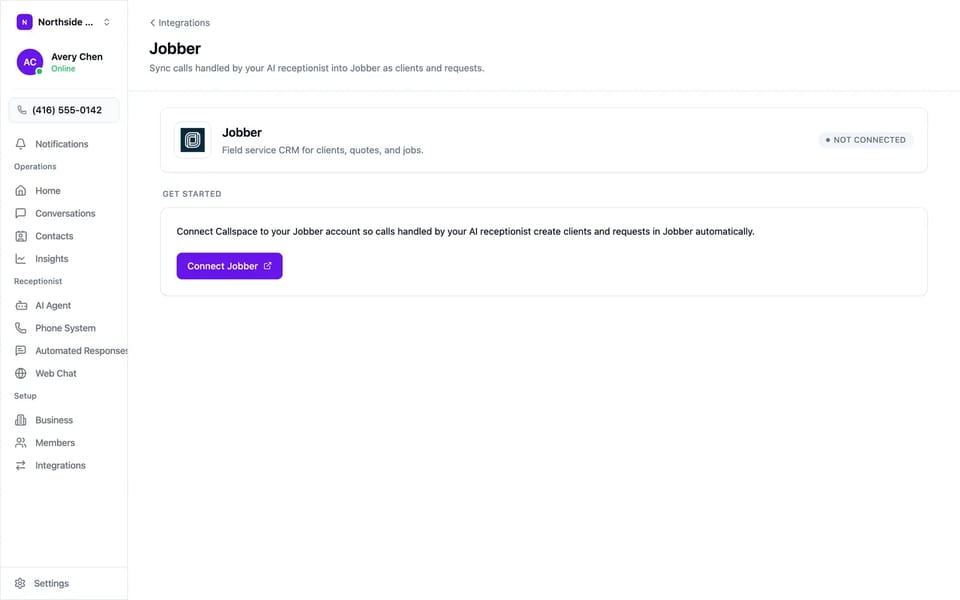
Approve access in Jobber and clients and requests start flowing.
-
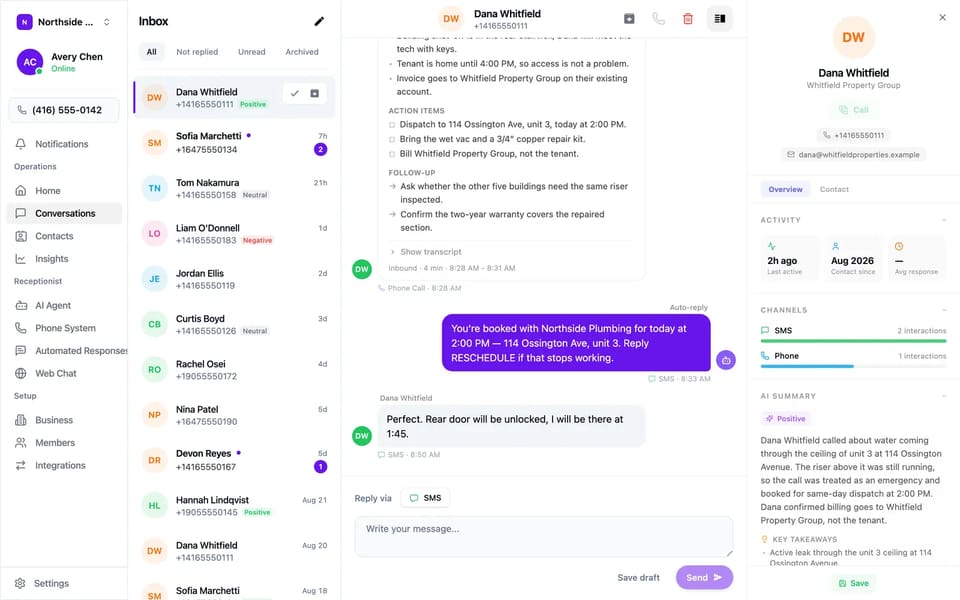
Every call is summarised, with the transcript one click away.
Use cases
When it earns its keep.
- A burst pipe reported while every tech is on a roof or under a house
- A Sunday-evening lead who calls the next company on the list if no one answers
- A homeowner asking for an estimate, booked for an on-site assessment during the call
- A repeat customer, matched to their Jobber record without re-entering their details
- The end-of-day session spent typing the day’s calls into Jobber
Try it on your own line, free for 7 days.
Setup
How to turn it on.
- 01
Connect
Open Settings → Integrations → Jobber, click Connect Jobber, and approve access in Jobber. Client lookup, client creation, and request creation work immediately.
- 02
Set booking hours
To book assessments too, go to Settings → AI Agent → Booking and set the hours you accept appointments, your timezone, and how long an assessment runs.
- 03
Turn on phone booking
Switch on Enable Phone Booking. From then on, availability is read from your Jobber schedule.
Before you start
- A Jobber account you can authorise. The connection is made through Jobber’s own approval screen.
- Creating clients and requests needs only the connection. Booking assessments also needs Enable Phone Booking switched on.
- One booking provider at a time. If Google Calendar or Calendly is connected, disconnect it before connecting Jobber.
FAQ
Questions we get asked.
Will it create duplicate clients for repeat callers?
No. It checks Jobber for an existing client by phone number before creating anything, and creates a new record only when nothing matches.
Does availability come from Jobber or from Callspace?
From Jobber. The AI reads your actual schedule, so it never offers a slot your crew is already booked into.
Can I connect Jobber without letting the AI book?
Yes. Client lookup, client creation, and request creation run as soon as Jobber is connected. Booking starts once you switch on Enable Phone Booking.
What happens in Jobber if I disconnect?
The AI stops reading and writing to Jobber. Every client, request, and assessment it already created stays in Jobber.
Does my team need to change how it uses Jobber?
No. New clients and requests arrive in Jobber where your team already looks for them, and assessments show up on the same schedule.
Does the AI create quotes or invoices?
No. It creates clients, requests, and assessments, the front of the workflow. You handle quoting and invoicing in Jobber.
More
Also connects to.
Put Jobber on the phone.
First 7 days free, then $150/month USD. Forward your line in about five minutes, and turn it off whenever you want.