Calendly integration
Callers book by phone into the event types you already run.
Your event types already hold your availability, buffers, and confirmation emails. Callspace answers the phone, reads live openings from the event type you choose, and books the caller before they hang up. Calendly sends the confirmation and reminders the same way it does for a web booking.
7-day free trial · 5-minute setup · Trained on your business · No contract
Scheduling · Available now
What it does on a call.
- 01
Live availability from your event type
The AI reads real openings from the event type you picked, with buffers, minimum notice, and daily limits applied. When the requested day is full, it offers the nearest open slots.
- 02
Books while the caller is on the line
The slot is booked before the call ends. The AI asks for the caller’s email and reads the spelling back, because Calendly sends the confirmation there.
- 03
Reschedules from caller ID
A returning caller is matched by phone number, so there is no booking reference to read out. If they have several upcoming appointments, the AI asks which one to move.
- 04
Calendly stays your calendar of record
Confirmations, reminders, cancellation links, and calendar invites all come from Calendly. Web bookings and phone bookings land in the same place.
In Callspace
What you will see.
-
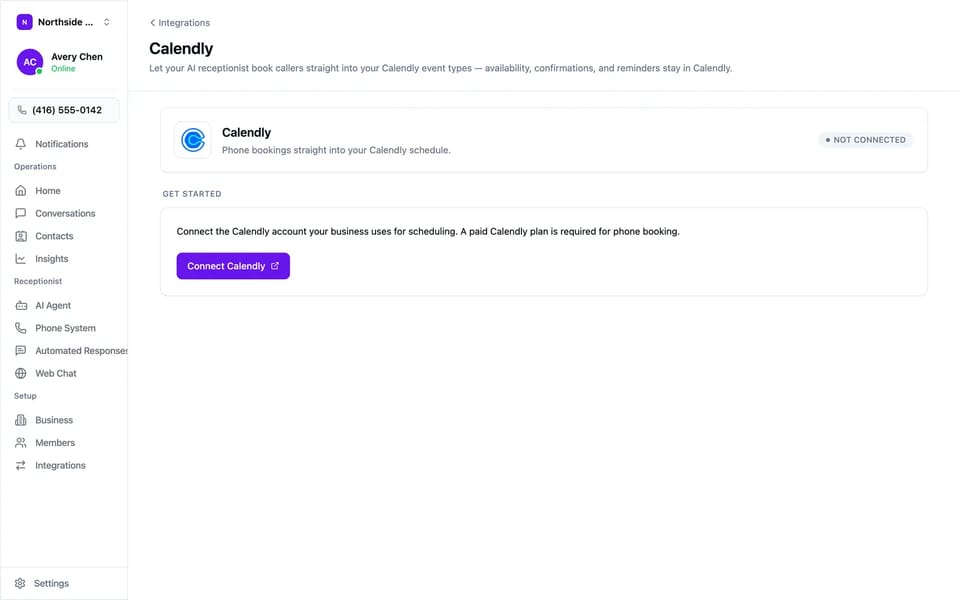
Connect the Calendly account you schedule from.
-
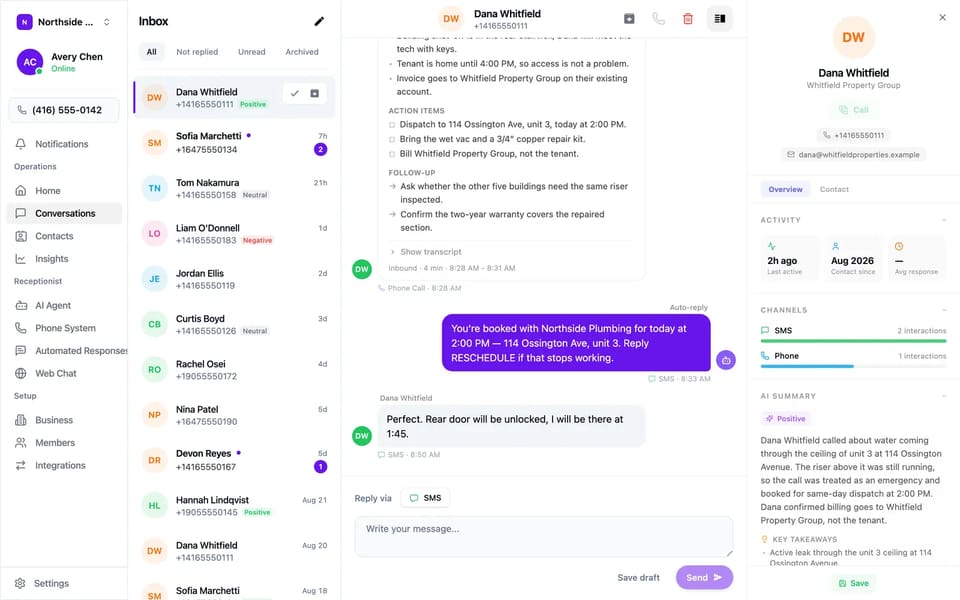
Every call is summarised, with the transcript one click away.
Use cases
When it earns its keep.
- A caller who would rather say “Thursday afternoon” than fill in a form
- A Saturday-night request that would otherwise sit in voicemail until Monday
- The call that comes in while your whole team is on another one
- A reschedule that used to depend on someone passing a message along
- Customers who never open the booking link you texted them
Try it on your own line, free for 7 days.
Setup
How to turn it on.
- 01
Connect
Open Settings → Integrations → Calendly, click Connect Calendly, and approve access with the account your business schedules from.
- 02
Choose an event type
Pick the event type the AI books into. Each team can use its own, so a sales line and a service line can book different event types.
- 03
Turn on phone booking
Go to Settings → AI Agent → Booking and switch on Enable Phone Booking. The next caller can book.
Before you start
- A paid Calendly plan. Phone booking uses Calendly API access, which the free tier does not include.
- An event type selected for the team. Booking stays off until one is chosen.
- One booking provider at a time. If Jobber or Google Calendar is connected, disconnect it before connecting Calendly.
FAQ
Questions we get asked.
Do I need a paid Calendly plan?
Yes. Booking by phone uses Calendly API access that the free tier does not include. The rest of Callspace works on any plan.
Does the caller get the usual Calendly confirmation?
Yes. Calendly sends the confirmation, reminders, calendar invite, and cancellation link exactly as it does for a web booking.
What if the caller will not give an email address?
Calendly requires an invitee email to create a booking. The AI asks for it and reads the spelling back before confirming. If the caller declines, the AI takes a message and you get the details by text.
Do my web bookings change?
Web bookings work as before. Phone bookings appear in the same event type, so your Calendly schedule shows both.
Where do I set my availability?
In Calendly. With Calendly connected, Callspace hides its own booking hours and duration settings, so one place decides when you are free.
Can I use Calendly and Google Calendar together?
One provider handles booking at a time, so two systems never offer the same slot. If your Calendly already syncs with your Google Calendar, that sync keeps working inside Calendly.
More
Also connects to.

Put Calendly on the phone.
First 7 days free, then $150/month USD. Forward your line in about five minutes, and turn it off whenever you want.