Google Calendar integration
Callers book onto the calendar you already keep.
You already run your day out of Google Calendar. Callspace reads it for open time, offers the caller a slot inside your booking hours, and writes the appointment onto your calendar before they hang up.
7-day free trial · 5-minute setup · Trained on your business · No contract
Scheduling · Available now
What it does on a call.
- 01
Checks your calendar before offering a time
The AI reads your calendar for openings inside your booking hours. Any existing event blocks the slot, including events Callspace did not create. When the caller’s preferred day is full, it offers the nearest alternatives.
- 02
Writes the appointment during the call
The event lands on your calendar while the caller is on the line, with their name and the reason for the visit. If they give an email, they are added to the invite and Google sends the confirmation.
- 03
Reschedules from caller ID
A returning caller is matched by phone number. If they have several upcoming appointments, the AI asks which one to move.
- 04
Follows the hours you set
You set booking hours, timezone, and appointment length. A 2am caller is offered a morning slot.
In Callspace
What you will see.
-
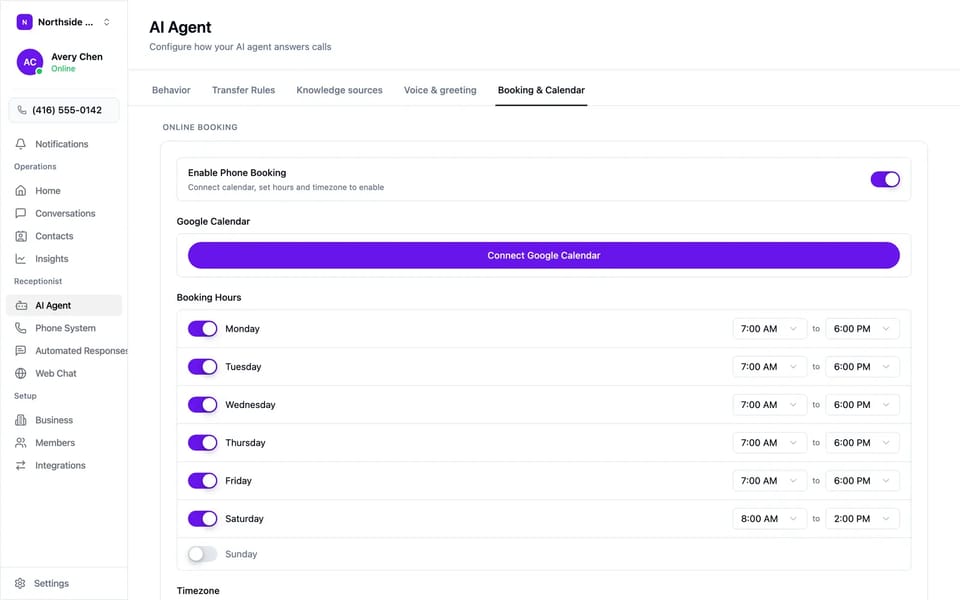
Phone booking is one switch, with your hours beneath it.
-
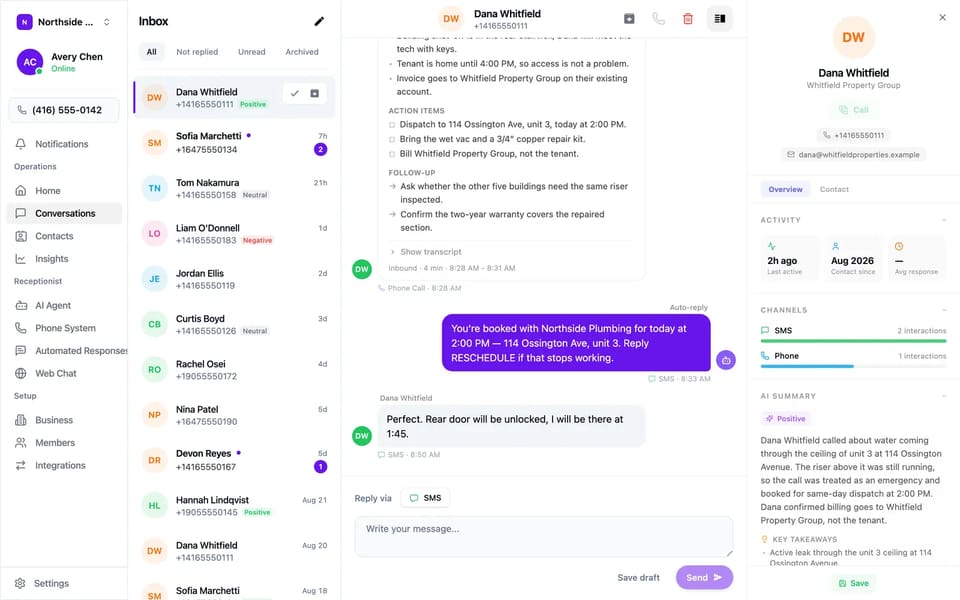
Every call is summarised, with the transcript one click away.
Use cases
When it earns its keep.
- A 9pm caller who wants the first opening tomorrow and gets it
- The phone ringing while you are with a customer
- A caller who asks for “the soonest you have” and hears real times
- A reschedule request that never reaches the front desk
- Holiday weekends when nobody is staffing the phone
Try it on your own line, free for 7 days.
Setup
How to turn it on.
- 01
Connect
Open Settings → AI Agent → Booking, click Connect Google Calendar, and approve access in Google.
- 02
Choose the calendar
Pick the calendar the AI reads availability from and writes appointments to. Other calendars on the account are left alone.
- 03
Set hours, timezone, and duration
Tell Callspace when you accept appointments and how long one runs. Every slot the AI offers falls inside them.
- 04
Turn on phone booking
Switch on Enable Phone Booking. The next caller can book.
Before you start
- A Google account that holds the calendar you want the AI to manage.
- Booking hours, timezone, and duration set. The toggle stays locked until they are.
- One booking provider at a time. If Jobber or Calendly is connected, disconnect it before connecting Google Calendar.
FAQ
Questions we get asked.
Can the AI double-book me?
The AI checks the connected calendar right before offering a time and writes the event during the call. Anything already on that calendar blocks the slot, including events other people created.
Which calendar does it use if I have several?
The one you choose during setup. Every other calendar on the account is untouched.
Does the caller get a confirmation?
If they give an email address, they are added to the calendar invite and Google sends it. You also get a summary of every call by text and email.
What happens outside my booking hours?
The AI still answers the phone and only offers times inside the hours you set.
Do I need to change how I use Google Calendar?
No. Appointments appear as ordinary events on the calendar you chose, and you can edit, move, or delete them like any other.
Can I use a shared or team calendar?
Yes. Any calendar the connected Google account can write to appears in the picker during setup.

Put Google Calendar on the phone.
First 7 days free, then $150/month USD. Forward your line in about five minutes, and turn it off whenever you want.