Product

One caller.
One thread.

A patient who calls on Monday, gets a text a minute later, and chats from your website on Thursday is one conversation in Callspace — same agent, same record, same inbox your team already works from.

Build

Live before lunch, without an engineer.

There is no pathway builder and no prompt to write. You give it your website, tell it the rules in sentences, and pick a voice.

  1. Set up

    Start from your website.

    Enter the URL and the agent reads your hours, services, locations, and policies from it. It can take a real call before a single document is uploaded.

    1. 01 Hours, services, and business details pulled from the site
    2. 02 PDFs, help pages, and rate cards added afterwards
    3. 03 Answers only from what you gave it, and says so otherwise
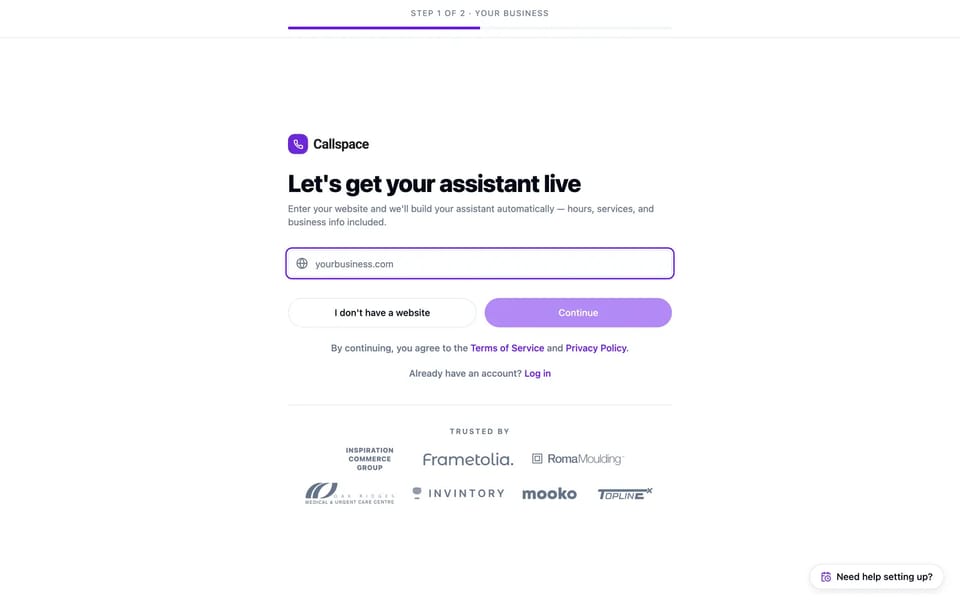
    The Callspace onboarding screen asking for a business website so the assistant can be built from it.
  2. Teach

    Rules in plain English.

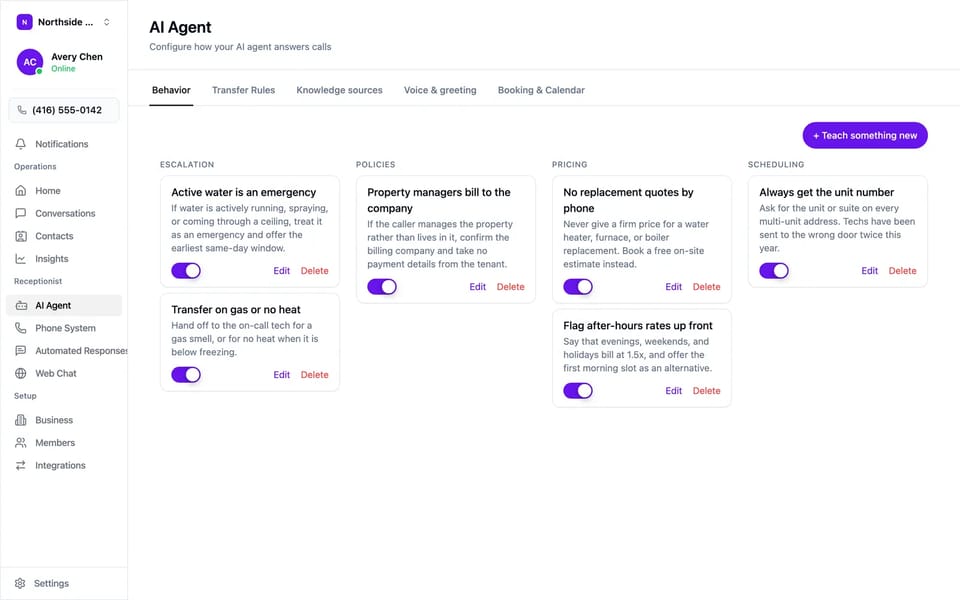
    Every instruction is a card your team can read: what counts as an emergency, who gets billed, what never gets quoted on the phone. Switch one off and the agent stops doing it on the next call.

    1. 01 Grouped by escalation, policies, pricing, and scheduling
    2. 02 Each rule on or off independently
    3. 03 Written by the person who knows the answer, not an engineer
    The AI agent’s behaviour rules as cards grouped under escalation, policies, pricing, and scheduling, each with its own on/off switch.
  3. Voice

    Sounds like your front desk.

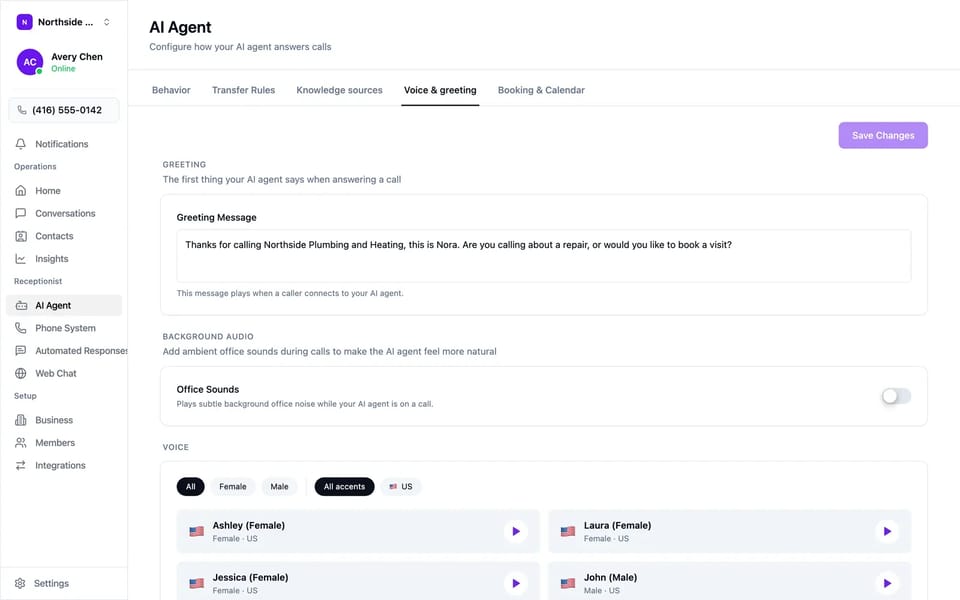
    Choose the voice, write the greeting, and decide whether callers hear a quiet office behind it. Names and street addresses that trip up speech get their own pronunciation entries.

    1. 01 A library of voices and accents to audition
    2. 02 Greeting in your words
    3. 03 Pronunciation overrides
    The AI agent’s voice and greeting settings: the written greeting, a background office-sounds option, and a filterable voice library.

Control

You decide what it does.

The agent runs inside the lines you draw. Every one of these is a setting your team can change without asking us.

  • Transfers

    Decide who gets the call, and when.

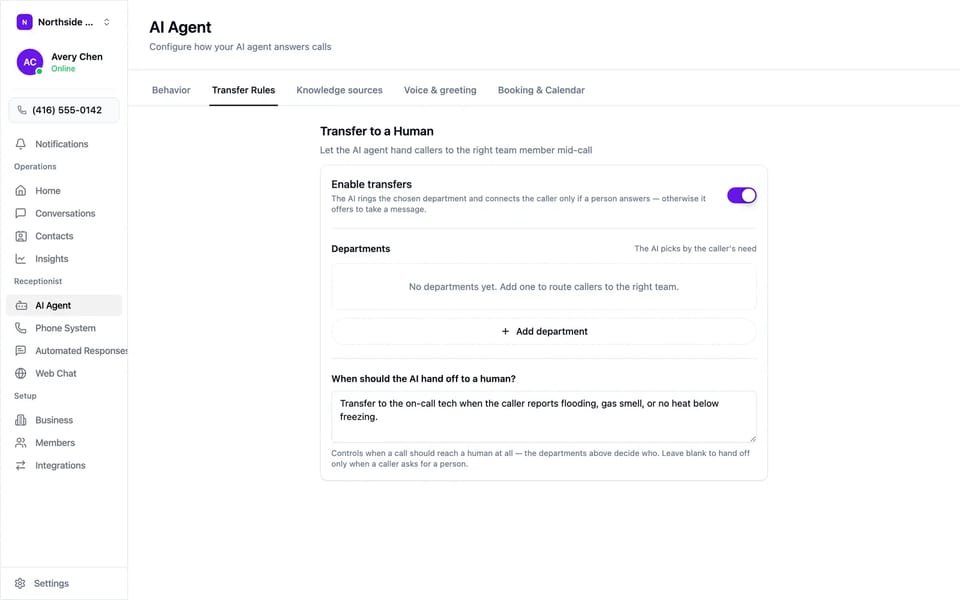
    Departments the agent can ring, and a plain-English rule for when it must. It connects the caller only if a person answers; otherwise it takes a message and books the callback.

    The AI agent’s transfer settings: transfers enabled, a list of departments, and a plain-English rule for when to hand a call to a person.
  • Booking

    Your hours, your calendar.

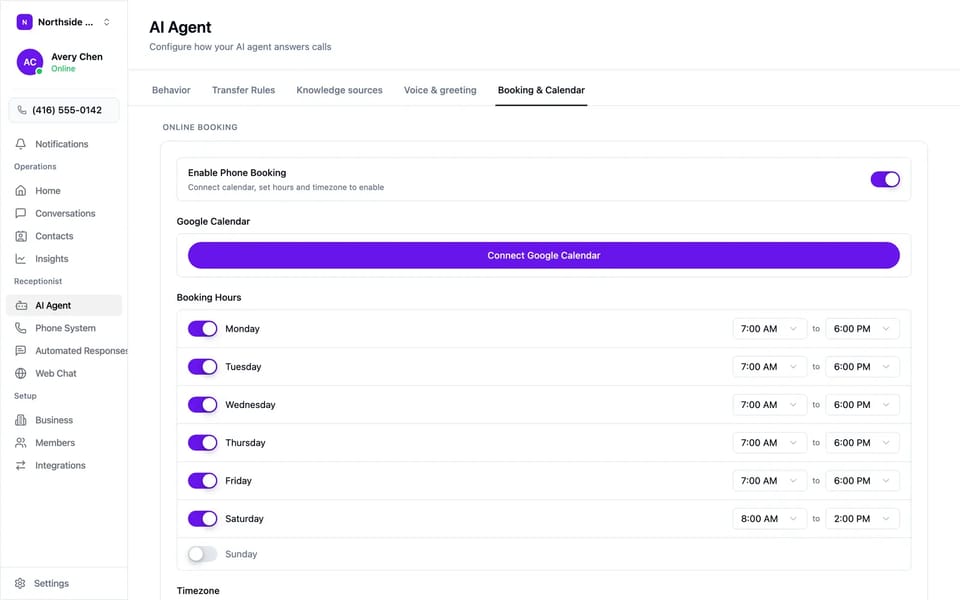
    Booking windows by day, your timezone, and the calendar it writes to. The agent offers real openings and confirms before the caller hangs up.

    The AI agent’s booking settings: a Google Calendar connection and booking hours switched on day by day.
  • Texts

    Missed calls get a text back.

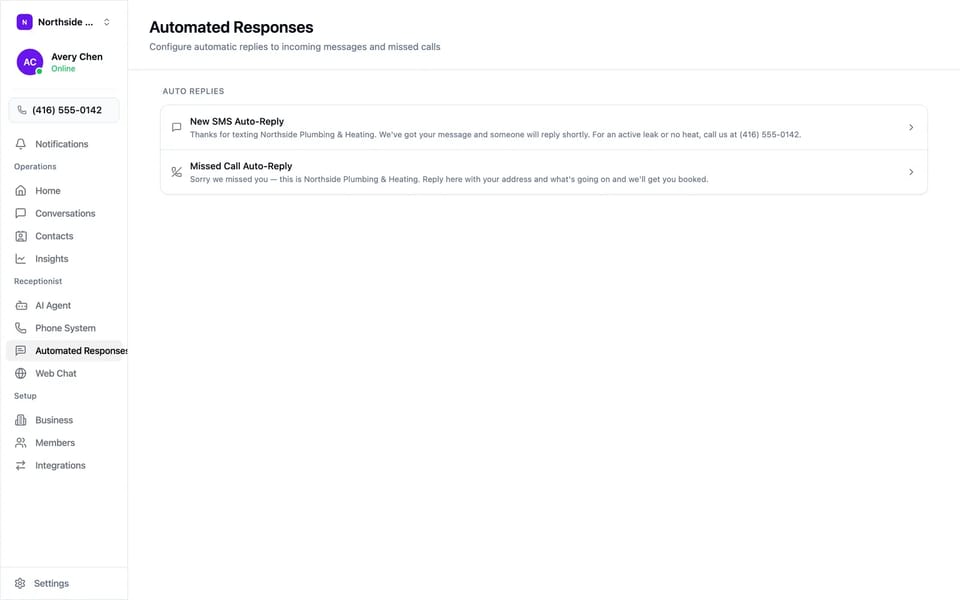
    An automatic reply for new texts and another for missed calls, in your words, so a caller who hangs up on the ring still gets a way in.

    The automated responses screen with a new-SMS auto-reply and a missed-call auto-reply written in the business’s own words.
  • Phone system

    Your number, your caller ID, your recording policy.

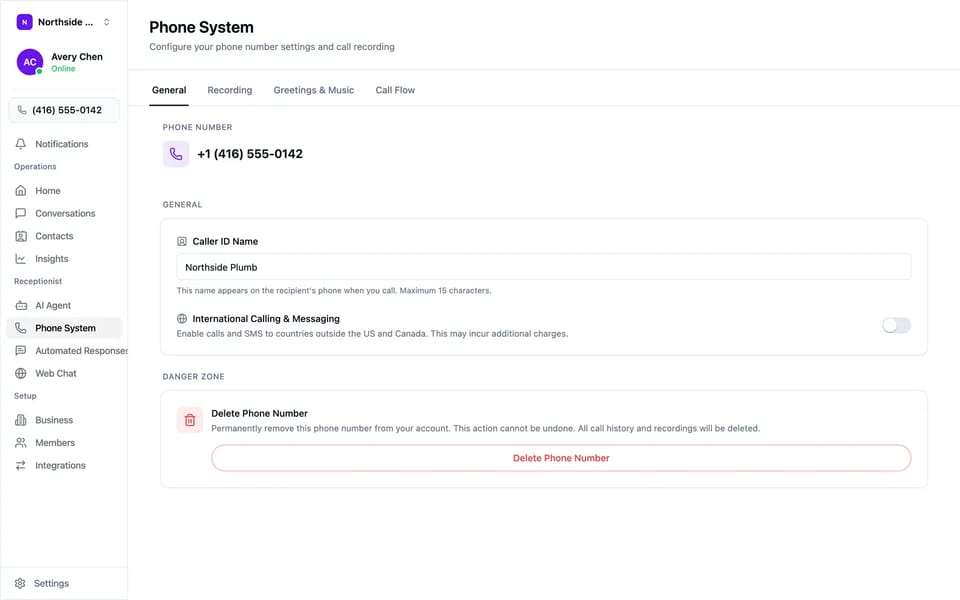
    Keep the number you have or take a new one. Set the outbound caller ID name, recording, greetings and hold music, and the call flow.

    The phone system settings: the business number, outbound caller ID name, and tabs for recording, greetings and music, and call flow.

Outbound

It places calls too.

Pick the contacts, tell the agent what each call is for, and it works through the list inside the hours you set. Every call comes back with an outcome your team can act on.

  1. 01

    Choose the objective

    Book an appointment, confirm one, follow up on a quote, or collect information. Add a sentence of context and the agent has its brief; everything else about your business comes from the setup it already runs on.

  2. 02

    Add the contacts

    Select them in Contacts or add everyone with a tag. Only people who have called or texted you, or who you confirm are existing customers, can be added. Anyone who asks to stop is marked do-not-call.

  3. 03

    Set the calling window

    Days, hours, how many attempts, and how long to wait between them. A voicemail pickup counts as an attempt and the agent tries again later.

  4. 04

    Read the result

    Each contact ends as booked, confirmed, callback requested, or the reason it did not happen, with the transcript and recording behind it. A requested callback notifies your team with the time they asked for.

Outbound · Follow-up booking AI placed
  1. Callspace

    Hi, is this Dana? This is the assistant at Riverside Physiotherapy. This call is recorded.

  2. Patient

    Yes, that’s me.

  3. Callspace

    Marcus asked me to get your follow-up booked for the next two weeks. Do mornings or afternoons suit you better?

  4. Patient

    Mornings, before work if you have anything.

  5. Callspace

    Marcus has Tuesday the 22nd at 7:30 a.m. or Thursday the 24th at 8. Which works?

  6. Patient

    Thursday at 8.

  7. Callspace

    Thursday the 24th at 8 a.m. with Marcus is booked. You’ll get a text confirmation in a moment. Thanks, Dana.

  • ✓ Called at 9:32, inside the calling window
  • ✓ Reached Dana
  • ✓ Follow-up booked · Thu 24 · 8:00 · Marcus
  • ✓ Outcome recorded: booked

Riverside Physiotherapy, Dana, and Marcus are fictional. Outbound calls go only to contacts with an existing relationship to your business, and a do-not-call request holds across every future list.

Observe

See every call. Hear any of them.

Quality review is reading real conversations, not sampling three a week. Everything the agent did is on the record, and the record is searchable.

  1. Every conversation

    Read what happened. Hear it if you need to.

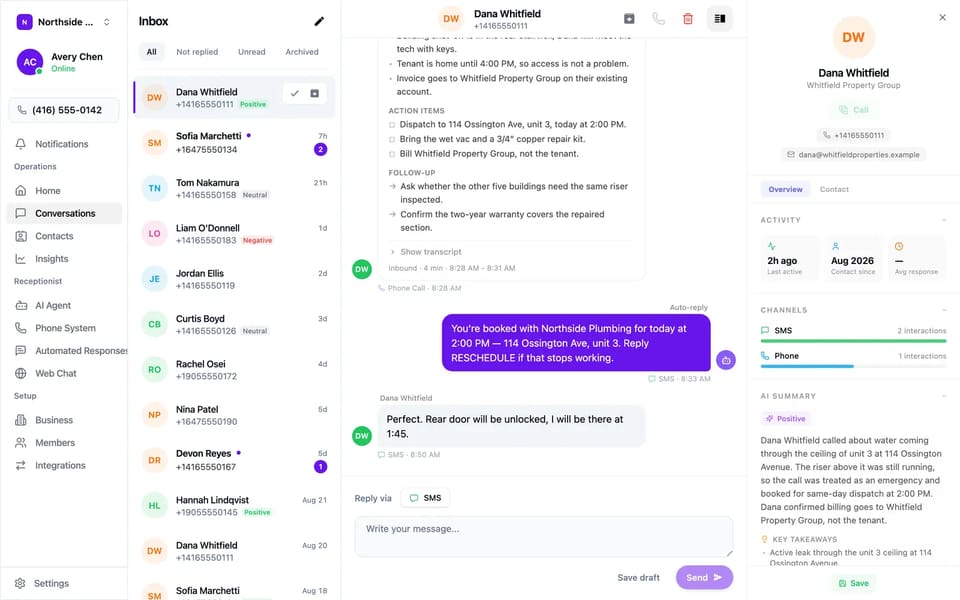
    Each call lands as a summary with action items and follow-ups, the transcript one click away, and the recording behind that. Your reply goes out as a text from the same thread.

    1. 01 Summary, action items, and follow-ups written as the call ends
    2. 02 Full transcript and recording for any call
    3. 03 Tags and filters to find the calls that need a look
    4. 04 SMS reply from the thread, so the caller has one conversation
    A Callspace conversation: the call summary with action items and follow-ups, the auto-reply text confirming the booking, and the caller’s contact panel.
  2. Notifications

    Told the way you want to be told.

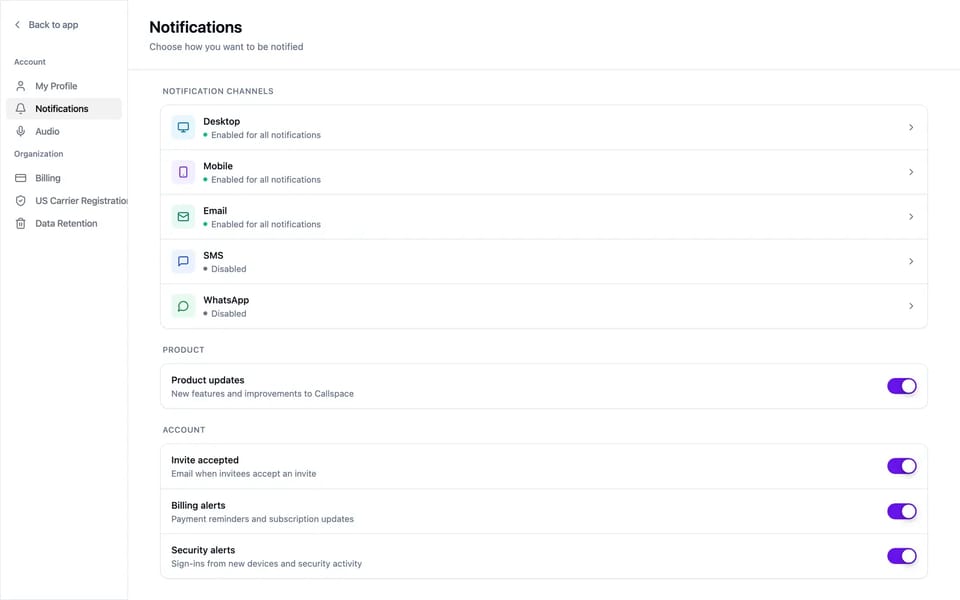
    Desktop, mobile, email, SMS, or WhatsApp, per person. Voicemails and @mentions land in the panel, so nothing waits on someone remembering to check.

    1. 01 Channels chosen per member
    2. 02 Voicemails and mentions in one panel
    3. 03 Under compliance mode, previews carry no caller details
    The notification settings listing desktop, mobile, email, SMS, and WhatsApp channels, each enabled or disabled separately.
  3. Team

    Roles for the people who need less.

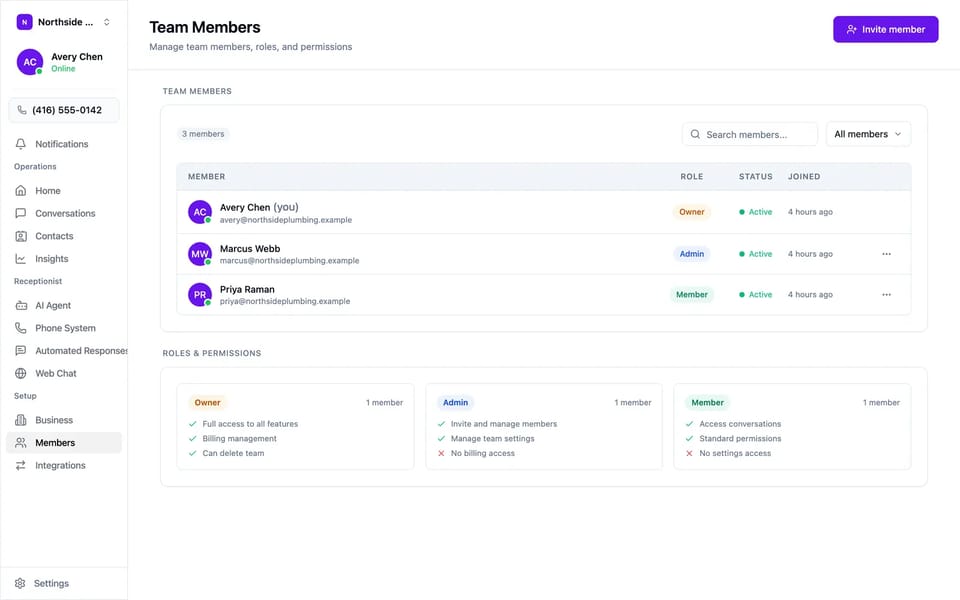
    Owners, admins, and members. Members work conversations and contacts, admins manage the team and settings, and only owners see billing.

    1. 01 Owner, admin, and member roles
    2. 02 Invite by email, see who is active
    3. 03 Settings and billing kept away from front-desk logins
    The team members screen listing three people with owner, admin, and member roles alongside their status.
  4. Insights

    The numbers, by day or by hour.

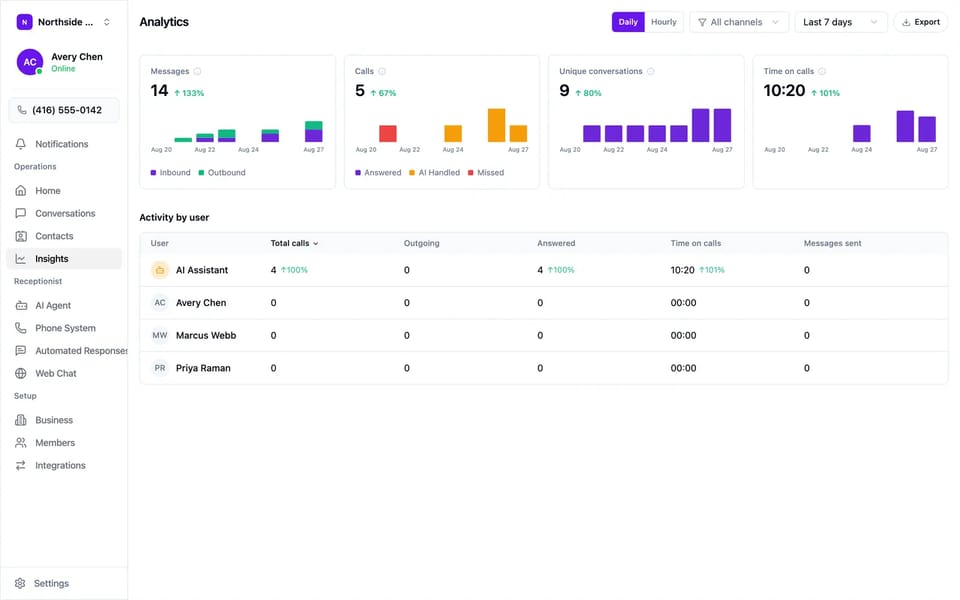
    Calls answered, missed, and handled by the agent, message volume, and time on calls — with an export for whoever needs it in a spreadsheet.

    1. 01 Answered, AI-handled, and missed, side by side
    2. 02 Activity by team member
    3. 03 CSV export
    The Callspace insights dashboard: message, call, and conversation charts above a table of activity by team member.

Trust

Ready for your security review.

A SOC 2 Type II audit is underway, we sign BAAs, and PHIPA/HIPAA compliance mode changes what leaves the app. The specifics your reviewer will ask about are on the security page.

  • 01

    Compliance mode, one way only

    PHIPA/HIPAA compliance mode is set per organization and cannot be turned back off. Behaviour that depends on it cannot be relaxed later, by your team or by ours.

  • 02

    Notifications carry no PHI

    With compliance mode on, email and SMS call summaries carry a link and nothing else, and push notifications drop the preview entirely. Lock screens and inboxes are the two places this data most often leaks, so it never goes there.

  • 03

    Every access recorded

    Reads of PHI-bearing records are written to an access log with actor, action, resource, request id, IP address, and timestamp — built to the content specification in PHIPA s. 10.1(4). Owner and admin only, viewable in the app and exportable as CSV.

  • 04

    Diagnostics log field names only

    Field names carry no caller data, so they are logged everywhere. Values are never written to a log line under compliance mode.

How the data is handled, in full

Integrations

Connects to what you already run.

Live integrations are the ones the agent can act through today. The rest are on the way, and anything not listed reaches us through webhooks or a custom integration.

  • Avaros EMR Soon
  • Attio Soon
  • Salesforce Soon
  • HubSpot Soon
  • Slack Soon
  • Pipedrive Soon
  • Zapier Soon
  • Stripe Soon
  • n8n Soon

Every channel, one agent, one place to see it all.

We will set it up from your website, agree the rules with your team, and put it live on one line so you hear it on your own callers before it takes any more.

We use cookies to see how people use this site (PostHog and Google Analytics) and to measure our ads on Meta and Instantly (Leadsy). Cookies the site needs to work are always on. You can change your choice anytime from Cookie settings at the bottom of the page. Privacy policy

Cookie settings

Choose which cookies we can use. Your choice is saved in a cookie on this browser for 12 months.

Necessary Protect the book-a-call form from bots (Cloudflare Turnstile), remember your light or dark theme, and store your cookie choice. Always on

Book a call

Leave your details and we’ll reach out to set up a time.