Integrations
Connecting Google Calendar
Let your agent read your real availability and write appointments straight onto your calendar.
Updated
Google Calendar is the simplest way to give your agent something real to book against. It reads the calendar you choose to see what’s already there, offers only slots that are genuinely free, and writes the appointment back when the caller agrees to one.
Your agent can check availability, book, and reschedule — all inside the call.
Before you start
You need a Google account with access to the calendar you want appointments written to, and no other booking provider connected. Callspace books through one provider at a time, so if Jobber, Calendly, or Juvonno is already connected, disconnect it first — otherwise the Google connection is refused with Another booking provider is active.
Connect it
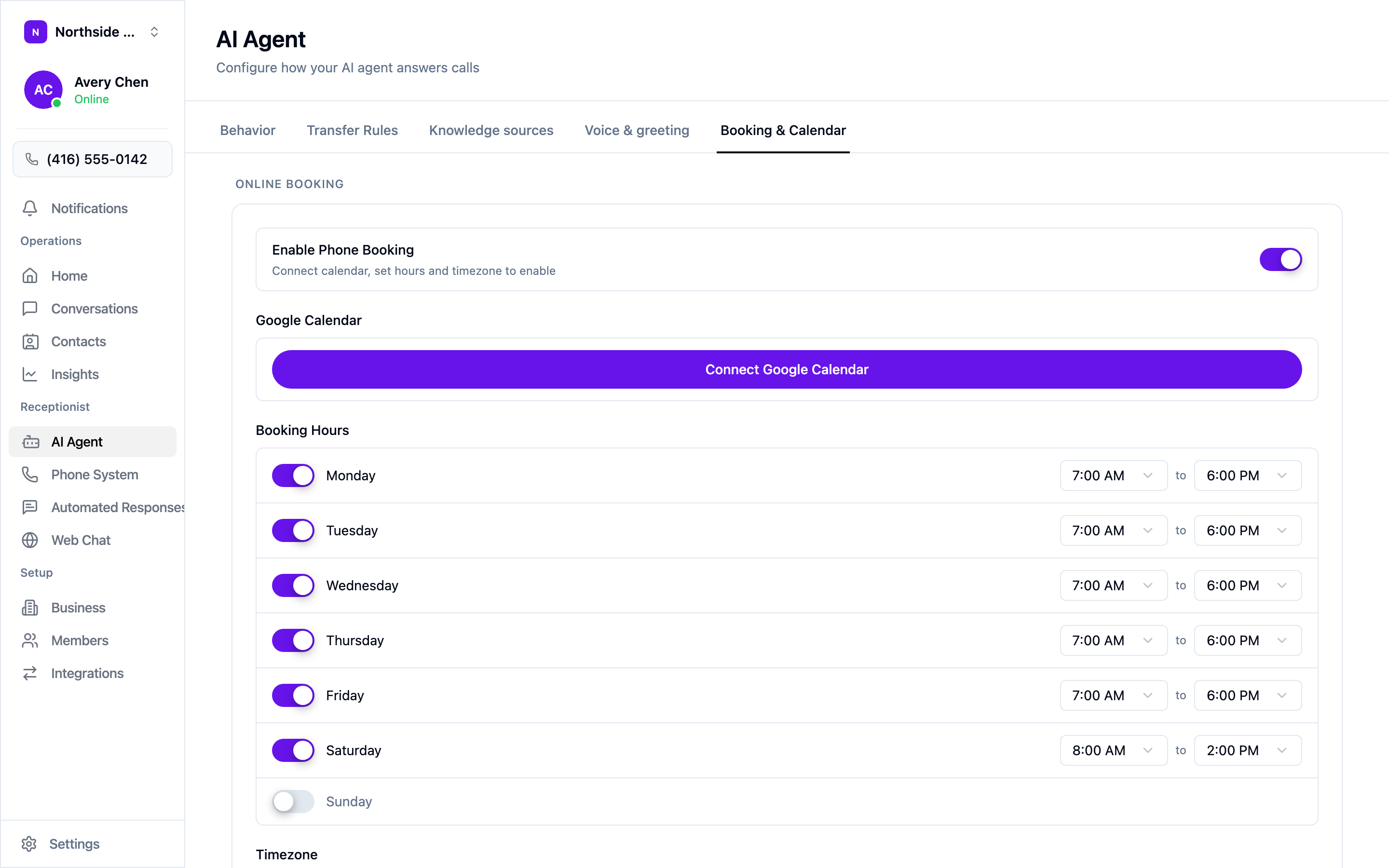
Open AI Agent → Booking & Calendar and choose Connect Google Calendar. Sign in to Google and allow calendar access — if you skip the calendar permission, the connection completes with nothing to read and booking stays off.
The Google Calendar tile under Settings → Integrations takes you to this same screen. There’s only one place to manage the connection.
After connecting
Pick the calendar. A Calendar dropdown appears under your connected account. It defaults to your primary calendar; switch it if appointments belong on a shared or job-specific one.
Set your booking hours. Toggle each day on or off and give it a start and end time. These are the hours your agent is allowed to offer, which aren’t necessarily your opening hours — plenty of businesses answer the phone from 7:00 AM but don’t want the first appointment before 9:00.
Set your timezone. Get this wrong and every slot your agent offers is off by the difference.
Tune the appointment settings if the defaults don’t fit:
- Appointment duration — how long each booking blocks off.
- Lead time — the minimum notice before the earliest slot your agent will offer, so you’re not booked for twenty minutes from now.
- Booking window — how far ahead it will book.
- Buffer between appointments — travel or reset time between jobs.
Enable Phone Booking stays greyed out until the calendar, hours, and timezone are all set. Turn it on last.
Test it
Call your own number and book an appointment as a customer would. Check that the slots offered fall inside your booking hours, that the appointment lands on the right calendar, and that the time is the one you expect. Do this once after setup and again any time you change your hours.
Disconnecting
Choose Disconnect next to the connected account. Your agent stops offering slots; appointments already on your calendar stay exactly where they are.
More on the settings around booking: Letting callers book appointments.