Integrations
Connecting Calendly
Book callers into the Calendly event types you already use, with Calendly keeping control of availability, confirmations, and reminders.
Updated
If your scheduling already lives in Calendly, connect it rather than rebuilding your hours in Callspace. Your agent offers the same slots your booking page offers, and the booking arrives in Calendly like any other — with the confirmation and reminder emails your invitees already get.
Your agent can check availability, book, and reschedule against a chosen event type.
Before you start
Calendly’s API is a paid feature, so phone booking needs a paid Calendly plan.
Callspace books through one provider at a time. If Google Calendar, Jobber, or Juvonno is already connected, disconnect it first — otherwise Connect Calendly is replaced by a note telling you which provider is currently active.
Connect it
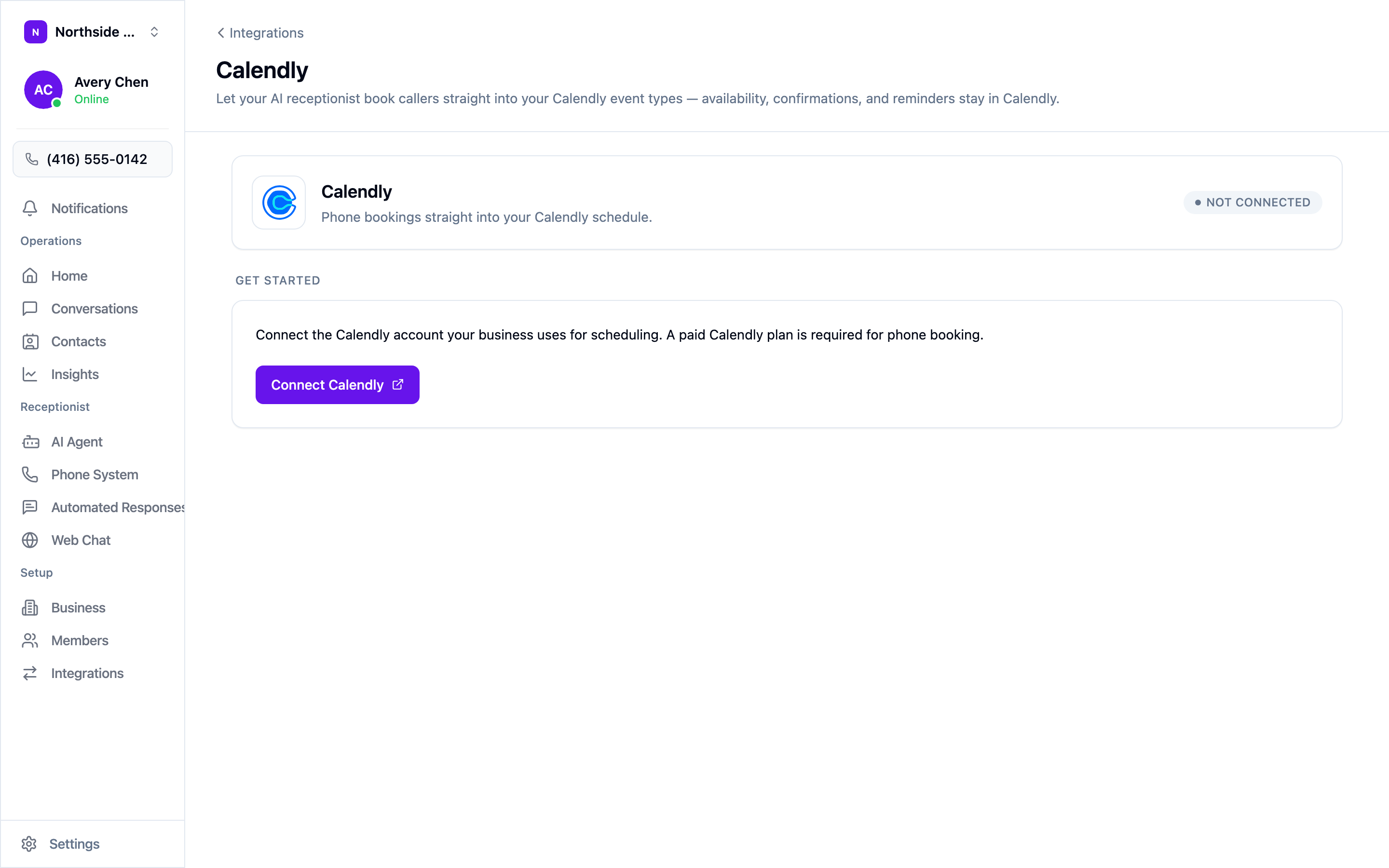
Open Settings → Integrations, choose Configure on the Calendly tile, then Connect Calendly. Sign in and authorise Callspace. You come back to a screen showing the connected account’s email and the access it was granted.
Pick the event type
This is the step that’s easy to miss: connecting the account isn’t enough. Booking stays off until you choose which event type the agent books.
Open AI Agent → Booking & Calendar. Under Event type the AI books, pick one from the dropdown — each option shows its length, so a “New client consultation (30 min)” is easy to tell from a “Quick call (15 min)”. Then turn on Enable Phone Booking.
Each team picks its own event type, so a sales line and a support line can book different things.
What Calendly controls
Once Calendly is connected, Callspace’s own booking hours, timezone, and appointment settings disappear from the Booking screen. That’s deliberate — everything comes from the event type instead:
- Availability — your Calendly schedule, including date overrides and buffers.
- Duration — the event type’s length.
- Confirmations and reminders — sent by Calendly to the invitee.
To change any of it, change the event type in Calendly. Your agent picks the change up on the next call.
Test it
Call your own number and book as a customer would. You’re checking that the slots offered match your Calendly booking page, that the event appears on the right calendar, and that the invitee confirmation arrives.
Disconnecting
Open the Calendly screen and choose Disconnect. Your agent stops booking; your Calendly account, event types, and everything already scheduled are untouched.