Integrations
Connecting Juvonno
Let your agent look up patients and book, cancel, and reschedule appointments in your Juvonno clinic.
Updated
Clinics get the most out of an agent when it can work the actual schedule. Connected to Juvonno, your agent recognises the patient calling, offers real openings with the practitioner’s name, and writes the appointment into Juvonno while the caller is still on the line.
During a call it can:
- Check openings for a kind of appointment — “massage”, “physiotherapy initial assessment” — and offer the nearest alternatives when the requested day is full.
- Book the caller in, matching them to their patient record by the number they’re calling from.
- Register a new patient when there’s no match, taking their name, date of birth, and gender, then booking in the same step.
- Cancel or reschedule an upcoming appointment, reading the options aloud first when the patient has more than one.
Before you start
You need your clinic’s Juvonno subdomain — the first part of the address you sign
in at, as in your-clinic.juvonno.com — and an API key. Create the key in
Juvonno under Settings › Integrations.
Treat the key like a password. Anyone holding it can read patient records through Juvonno’s API.
Callspace books through one provider at a time. If Google Calendar, Calendly, or Jobber is already connected, disconnect it before connecting Juvonno.
Connect it
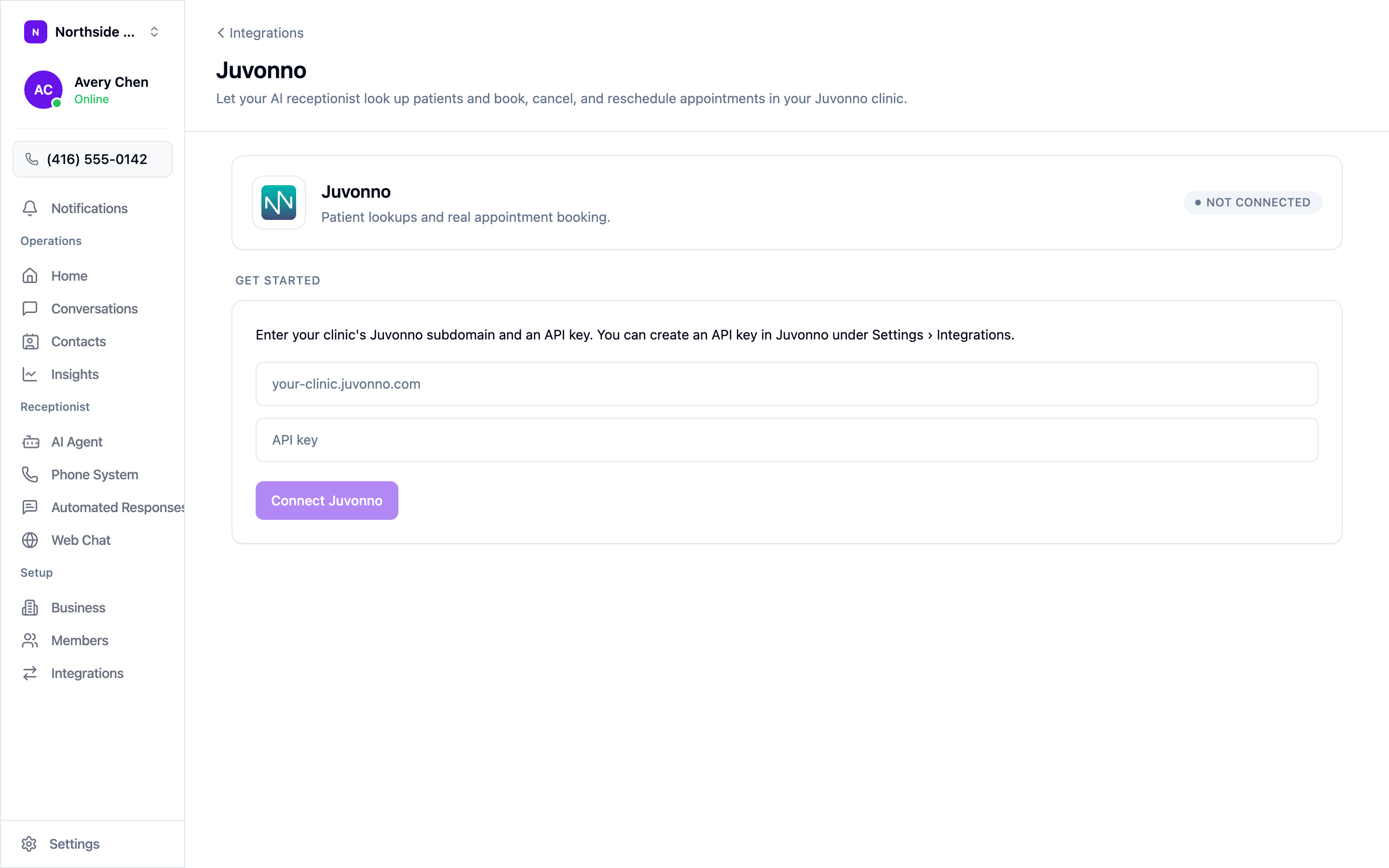
Open Settings → Integrations, choose Configure on the Juvonno tile, then enter your subdomain and API key and choose Connect Juvonno. Callspace checks the credentials immediately, so a typo in either field fails right there rather than silently on the first call.
Choose the location
Callspace loads your clinic’s locations from Juvonno and asks you to pick one. Booking stays off until you choose. The agent books everything at that location, so a clinic with several sites needs the one this phone number belongs to.
Then open AI Agent → Booking & Calendar and turn on Enable Phone Booking.
What Juvonno controls
Openings come from Juvonno, not from Callspace. Practitioner schedules, appointment types, and their lengths are all read from the clinic — your Callspace booking hours don’t narrow them. The two settings that still apply are your timezone, which decides how times are spoken, and your lead time, which stops the agent offering a slot twenty minutes from now.
The appointment types your agent can offer are your Juvonno schedule types. If a caller asks for something that isn’t one of them, the agent reads back the types you do offer.
Test it
Call from a number that already has a patient record and book something. Check in Juvonno that the appointment is on the right practitioner’s schedule, at the right location, under the right appointment type. Then call from an unknown number and let the agent register you as a new patient — that path collects a date of birth and gender, and it’s worth hearing how it sounds.
Disconnecting
Open the Juvonno screen and choose Disconnect under Danger zone. Your agent stops looking up patients and stops booking. Nothing in Juvonno changes, and appointments already booked stay as they are.