Integrations
Connecting Jobber
Turn calls into Jobber clients and requests, and book on-site assessments against your Jobber schedule.
Updated
Jobber is the deepest of the integrations, because a service call usually needs more than a calendar entry. With it connected, a call your agent handles arrives in Jobber as a real client and a real request — the same records you’d have typed in yourself afterwards.
During a call your agent can:
- Find an existing client by the number the caller is ringing from, so regulars aren’t entered twice.
- Create a client when there’s no match, with the name, phone, email, and address it collected.
- Create a request describing the work needed, so the lead is in your pipeline rather than in a voicemail.
- Check availability and book an on-site assessment, then move it if the caller changes their mind before hanging up.
Before you start
You need a Jobber account you can authorise apps for. Callspace asks for read and write access to clients and requests, and read access to jobs and quotes — enough to see what’s on the schedule and add the new work, and nothing that touches your invoicing.
Callspace books through one provider at a time. If Google Calendar, Calendly, or Juvonno is already connected, disconnect it before connecting Jobber.
Connect it
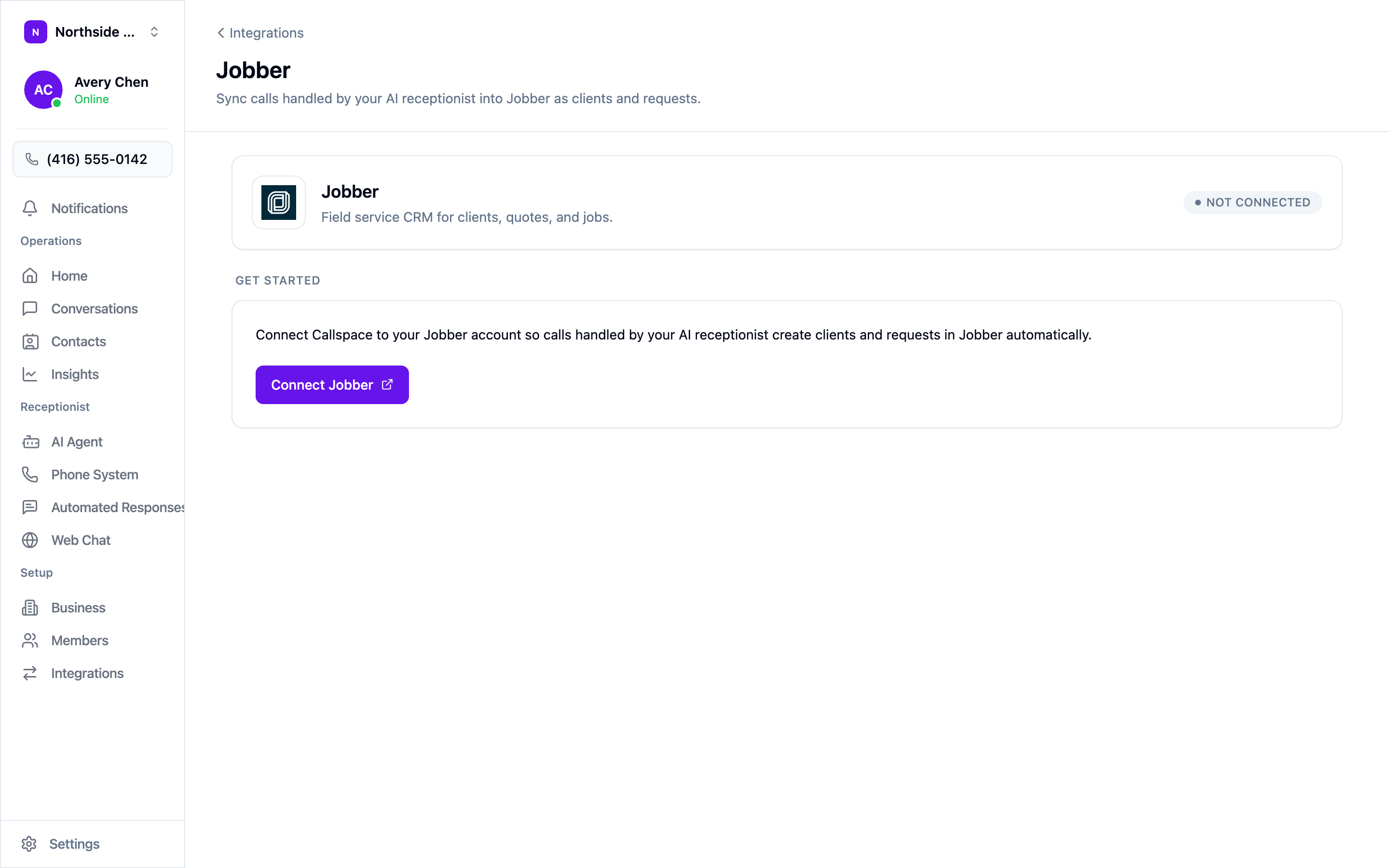
Open Settings → Integrations, choose Configure on the Jobber tile, then Connect Jobber. Sign in to Jobber and approve the access request. You come back to a screen showing your Jobber account ID, the access granted, and when Callspace last synced.
Set the booking hours
Jobber becomes the schedule your agent books against, but the hours it’s allowed to offer are still yours. Open AI Agent → Booking & Calendar, set your booking hours and timezone, and turn on Enable Phone Booking.
Your agent then offers times that are inside your booking hours and free on your Jobber schedule. Two things are worth knowing about the slots it picks:
- Assessments are never offered less than 24 hours out, whatever your lead time is set to. Someone has to drive there.
- The buffer applies between visits, so back-to-back bookings leave you travel time.
Test it
Call your own number as a new customer would, describe a job, and book an assessment. Then check Jobber: there should be a new client, a request describing the work, and an assessment on the schedule at the time you agreed. Call again from the same number to confirm the second call finds the client instead of creating a duplicate.
Disconnecting
Open the Jobber screen and choose Disconnect under Danger zone. Your agent stops creating records and stops booking. Clients, requests, and assessments already in Jobber are untouched.