Calls & messages
Web chat on your website
Put your AI receptionist on your site with a single line of code.
Updated
Web chat puts the same agent that answers your phone onto your website. Someone who isn’t ready to call can type instead, and the conversation lands in the same inbox as your calls and texts.
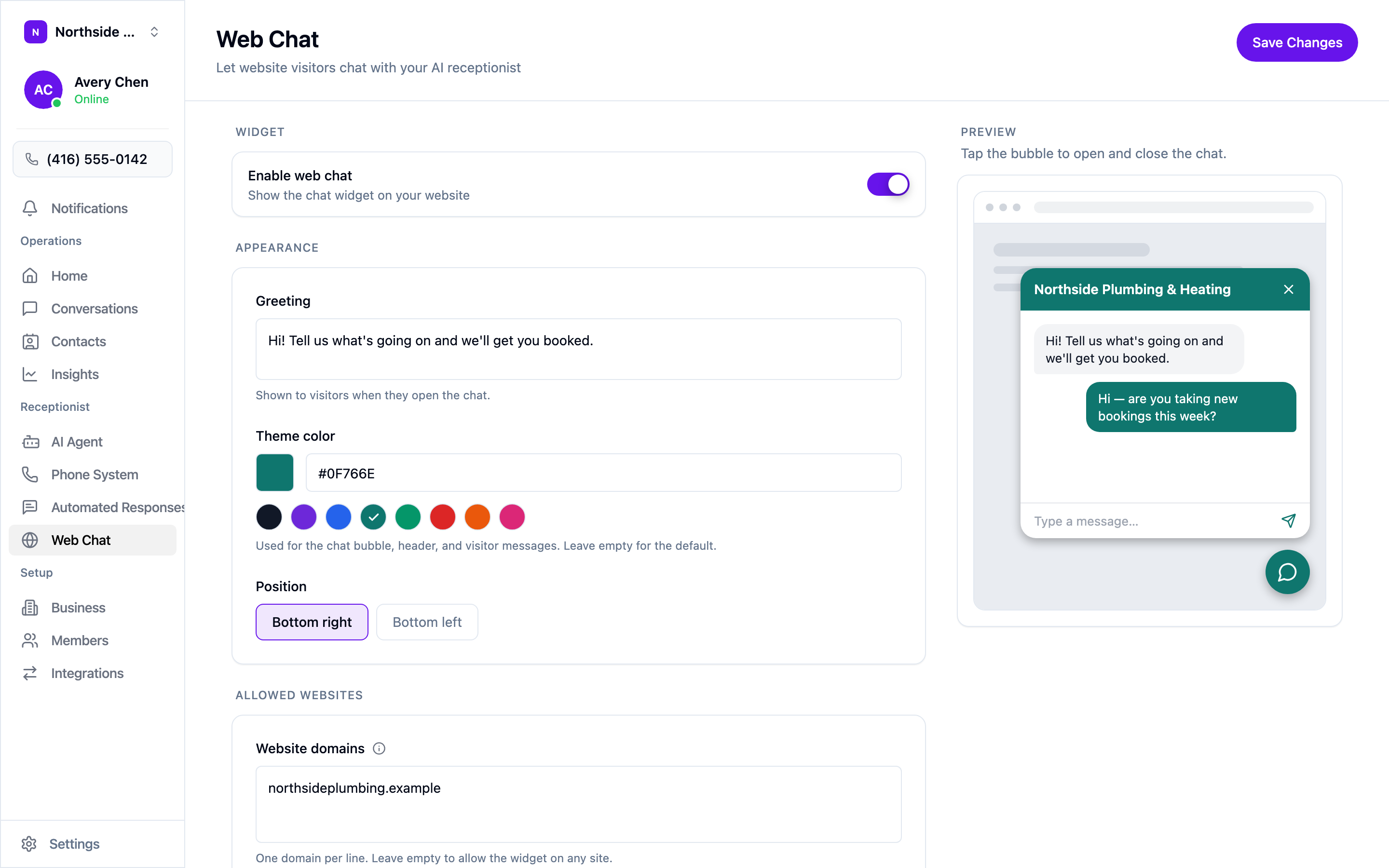
Turn it on
Web Chat in the sidebar. Flip Enable web chat, then add the embed code below — the switch and the snippet are both needed, and neither does anything on its own. Turning the switch off later takes the bubble off your site without touching the code.
Appearance
Three settings, and the preview beside them updates as you type:
- Greeting is the first thing in the panel when a visitor opens it. It’s a written message, not your phone greeting — keep it to a line.
- Theme color colours the bubble, the panel header, and the visitor’s own
messages. Pick a preset or paste a hex value like
#0F766E. Left empty it falls back to near-black. - Position puts the bubble in the bottom right or bottom left corner.
Allowed websites
Website domains is the list of sites allowed to open chats with your widget. Your widget key travels in your page’s HTML where anyone can read it, so this is what stops someone pasting it onto a site of their own.
One domain per line, and just the domain — northsideplumbing.example, not the
full address. www is covered automatically, but any other subdomain needs its
own line, so a shop on shop.example.com is a second entry. Chats opened from
anywhere else are turned away.
Leave the box empty and the widget works on any site, which is worth doing only while you’re testing.
Add it to your site
Copy the snippet under Embed code and paste it into your site’s HTML:
<script async src="https://usecallspace.com/widget.js" data-widget-key="wck_..."></script>Anywhere on the page works — most site builders have a “custom code” or “footer scripts” box, which is the easiest place to put it. The widget draws itself in an isolated shadow root, so your site’s styling can’t affect it and it can’t affect your site.
What a visitor sees
A bubble in the corner. Opening it shows your greeting; nothing is recorded until they actually send a message, so opening the panel and closing it again doesn’t create a conversation.
Once a chat starts, it’s remembered in that visitor’s browser. If they come back to your site later, they pick the same thread up where they left it.
What the agent does
Everything under AI Agent applies here — the same knowledge, the same behaviour rules, the same booking setup as on the phone. What differs is that it’s writing, not speaking:
- Replies are one to three plain sentences. No emoji, no formatting.
- A visitor arrives anonymous, so once the conversation has some substance the agent asks for a name and a phone number or email and saves them to the contact. Until then the conversation shows as Website visitor in your inbox.
- If someone wants a person, asks about pricing beyond what the agent knows, or raises something it can’t help with, it flags the conversation for follow-up and tells them a team member will be in touch.
Visitors are limited to 30 messages an hour per conversation.
Taking over a chat
Web chats appear in Conversations with a Web chat badge, and the agent’s replies are labelled AI assistant. Everyone on the team gets a notification when a message comes in.
To answer yourself, reply from the composer as you would to a text — if the conversation has more than one channel, pick Web chat from the channel picker first. The moment you send, the AI stops replying to that visitor and the chat is yours for the rest of their session. The next visitor still gets the agent.
If the bubble doesn’t appear
Three things to check, in order:
- Enable web chat is on.
- The site you’re looking at is in Website domains, spelled as the bare domain.
- The snippet on the page carries the
data-widget-keyfrom this screen. The widget does nothing at all without it.