Your account
Notifications
Choose how Callspace reaches you when a call comes in or a customer replies.
Updated
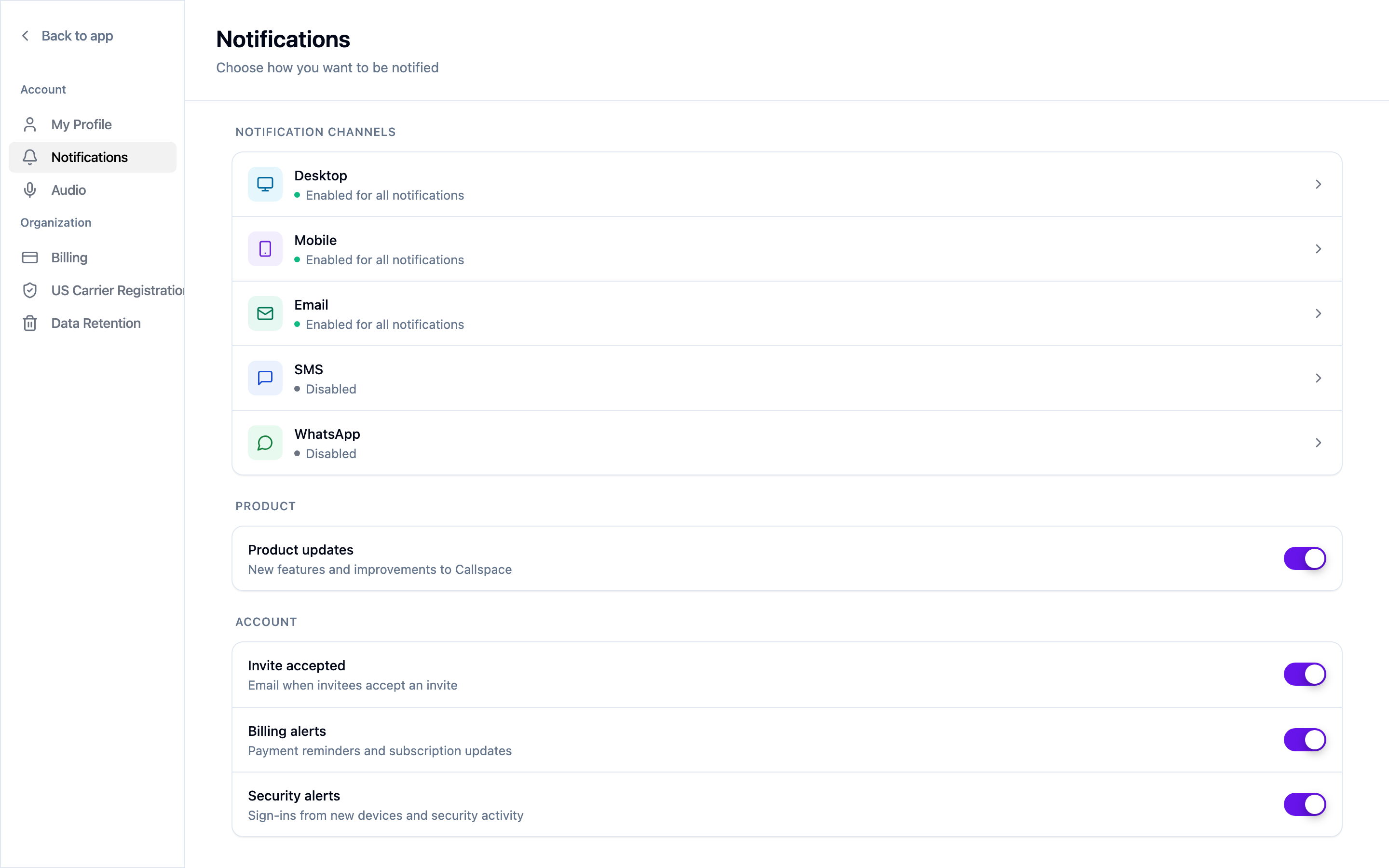
Open Settings → Notifications. Notification preferences are per person — what you choose here affects you, not your teammates.
Channels
Five ways Callspace can reach you: Desktop, Mobile, Email, SMS, and WhatsApp. Each shows its current state in the list, and opens to a screen where you choose which events use it.
Desktop, Mobile, and Email are enabled for all notifications by default; SMS and WhatsApp start disabled.
Product and account notices
Separate from the channels above:
- Product updates — new features and improvements.
- Invite accepted — email when someone accepts your invitation.
- Billing alerts — payment reminders and subscription updates.
- Security alerts — sign-ins from new devices and other security activity.
Leave security alerts on. They’re how you find out about a sign-in that wasn’t you.
Setting these up sensibly
The failure mode is muting everything after a noisy week, then missing the one call that mattered.
A split that tends to hold up:
- Mobile push for things needing a response now — a transfer that went unanswered, a customer reply while you’re out.
- Email for the daily record you’ll skim later.
- SMS for very little. It competes with your customers’ texts in the same inbox.
If you’re getting too much, narrow which events use a channel before you switch the channel off entirely.